
Getting Started
A Tour of the Editor
Where everything lives in the Knytstudio editor: the tool rail, menus, floating panels, minimap, and the keyboard shortcuts that speed you up.
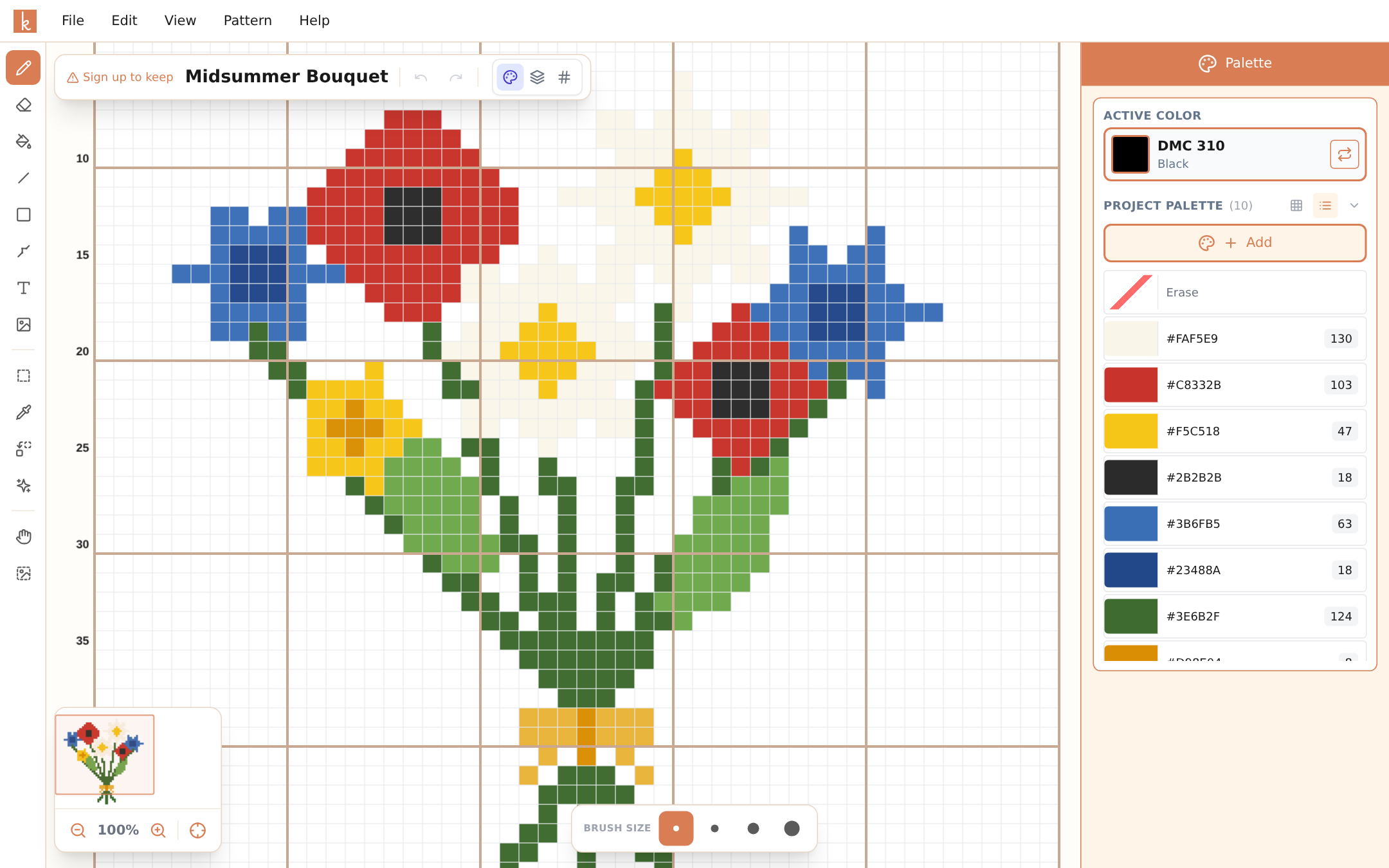
The editor is built to keep your pattern in the middle and everything else out of the way. Here is the map:
The menu bar along the top works like a desktop app: File (save, new pattern, exports), Edit (undo, copy, paste, replace color, clear), View (zoom, grid toggles), Pattern (progress tracker, tracing image, canvas settings), and Help (keyboard shortcuts).
The tool rail on the left holds every tool: draw, erase, paint bucket, line, shapes, backstitch, text, image import, select area, color picker, replace color, confetti fix, pan, and tracing. Hover any tool to see its name and hotkey.
The floating pattern bar at the top of the canvas shows your pattern name (click to rename), undo and redo, and the three view modes — colors, hybrid, and symbols. It also shows your save status.
The tool options bar appears at the bottom center when the active tool has settings: brush sizes for drawing, square or circle for shapes, line / pen / erase for backstitch, and copy / paste / magic fill for selections.
The palette on the right holds your project colors with a live stitch count for each, the active color with its floss code, and a button to browse the full thread library.
The minimap in the bottom-left corner shows your whole pattern with a rectangle marking what you currently see. Click or drag on it to jump anywhere, and use the zoom controls or recenter button beneath it. On a 50-stitch chart you may not need it; on a 500-stitch chart you will love it.
The bottom-right corner shows the stitch and row under your cursor, so you always know where you are while counting.
That is the whole editor. Next: make a pattern from a photo, or learn the drawing tools.
Frequently asked questions
Does the editor work on phones and tablets?
Yes, fully. On mobile the tools move into touch-friendly bottom sheets and a compact tool strip, with two-finger pan and pinch zoom. It is the same editor, arranged for your thumb instead of your mouse.
How many undo steps do I get?
Up to 50. Ctrl+Z to undo, Ctrl+Y to redo, on Mac with Cmd instead.
Where do I find all keyboard shortcuts?
Open Help, then Keyboard Shortcuts. Most tools are one key: D for draw, E for erase, L for line, S for shapes, B for paint bucket, P for color picker.
Try it yourself
The Knytstudio editor is free to use in your browser. No install, no signup needed to start.
Open the editor